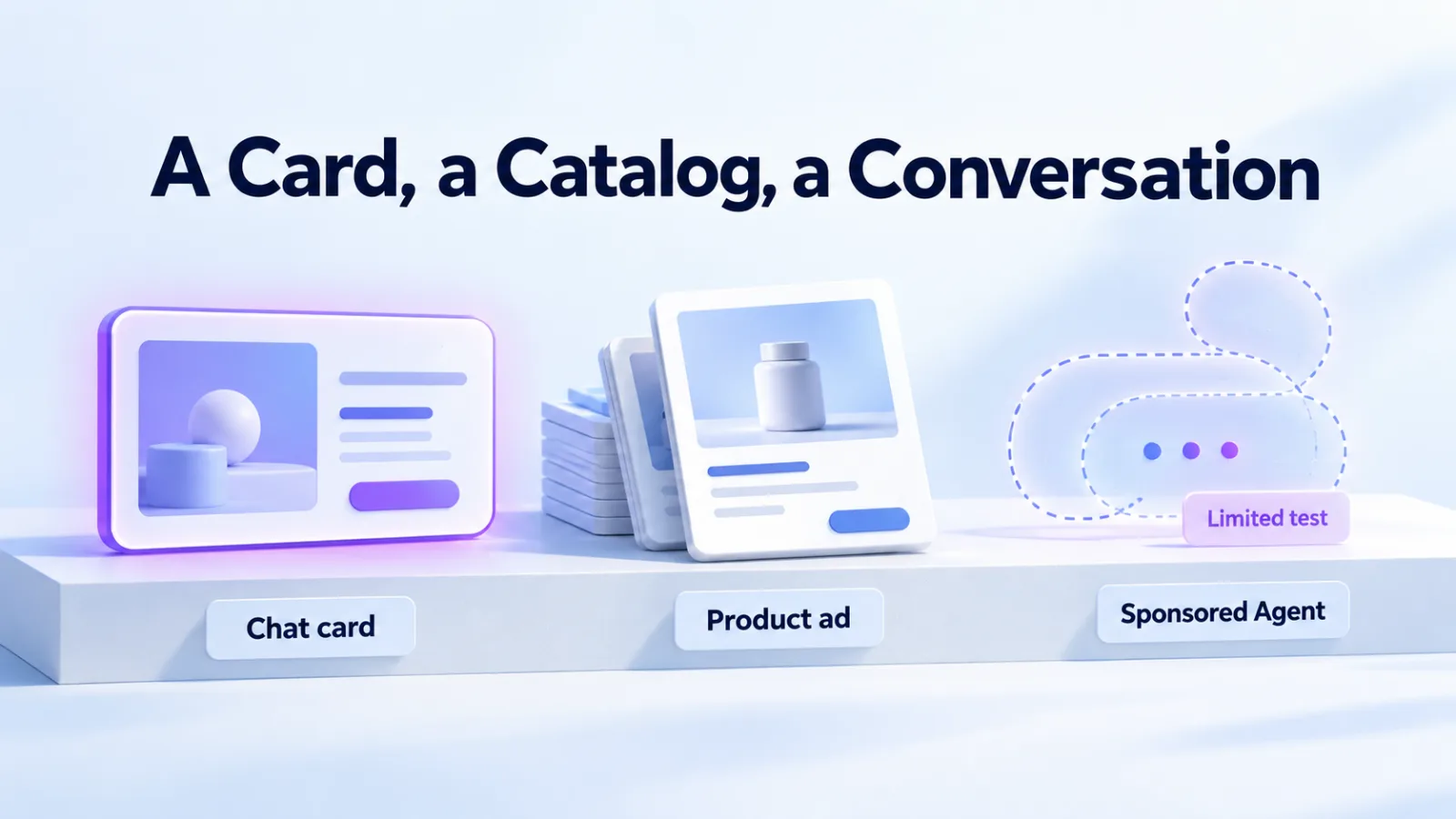

ChatGPT product feed ads are built from your catalog. You supply a product feed and choose which products each ad group can use. Every ad is then filled in from the product it shows. This guide covers how to get a catalog in and the nine fields OpenAI requires. It also covers keeping the feed current and fixing errors.
Figures are OpenAI’s unless labeled as reported.
The short version
- A feed is a file with one row per product or variant, and nine fields on every row.
- OpenAI offers three ways in: upload a file, give a hosted URL, or connect over SFTP.
- Items expire after two weeks, so a feed that is never refreshed runs dry.
- Price and stock changes can go through the Delta API. Everything else needs a full upload.
- A feed created in Ads Manager is eligible only for ads during the beta, not for ChatGPT’s shopping results.
Four ways to supply a ChatGPT product feed
Which route fits depends on who maintains the catalog and how often it changes.
| Route | How it works |
|---|---|
| Shopify app | Syncs your catalog and commerce events to Ads Manager. Available to Shopify customers in the US now, and OpenAI says other markets will follow. |
| Upload a file | Upload a CSV or TXT file in Ads Manager. Best for getting started or an occasional manual update. |
| Hosted URL | Give Ads Manager a stable HTTPS address for the file. Best when the catalog already lives at one. |
| SFTP | A server-to-server connection, for teams that automate uploads. Needs product feed API access for the account. |
OpenAI also accepts a Google-compatible feed format, but only after it confirms that format for your registered feed.
Which one to choose
Use the Shopify app if you’re a US Shopify store and want the shortest path. Use a hosted URL or SFTP if the catalog changes often. OpenAI recommends both, because items expire after two weeks. Use a manual upload only to start, or for a small, rarely changing range.
The nine required fields
OpenAI’s product format has one row for each purchasable item or variant. Nine fields are required on every row.
| Field | What goes in it |
|---|---|
item_id | A stable ID, unique per item or variant. Never reuse it for a different product. |
title | The product name, including the variant where relevant. |
description | A factual description of this item, in plain text. |
url | The product page, with the variant selected where possible. |
brand | The brand as shown on the product page. |
seller_name | The name of the seller supplying the offer. |
image_url | A direct link to the main image for this variant. |
availability | in_stock, out_of_stock, pre_order, backorder or unknown. A missing or unrecognized value rejects the row. |
price | The regular price in normal currency units with a currency code, such as 79.99 USD. |
OpenAI asks for concise titles, aiming for at most 150 characters, and descriptions of at most 5,000. Product pages and images must be publicly accessible, preferably over HTTPS.
Don’t fill unknown optional fields with placeholders such as “n/a” or “null”. OpenAI asks you to leave them out. The one exception is availability, where unknown is valid. Even then it doesn’t claim the item is in stock.
Variants and IDs
A variant is a version of one product, such as a size or a color. Send one row per variant, each with its own item_id, price, availability, link and image.
Link the rows together with a shared group_id that differs from every item ID. Set listing_has_variations to true, and describe the choice in variant_dict, for example size 10 in black. Keep all these identifiers stable when a price, stock level, title or image changes, because later updates find the product by them.
Fields that matter for ads
Three optional fields do most of the work in an ads feed.
| Field | What it does |
|---|---|
is_ads_eligible | Set it to true for each product you want advertised. In an OpenAI-format file it is off unless set or unless your feed has an ads default. Feeds created in Ads Manager make products eligible unless an item is marked false. |
ads_metadata | Holds custom labels, such as a margin tier or a season, that ad group filters can use. Use only the keys agreed during ads setup. |
additional_image_urls | Extra views of the product. |
The market matters too. The standard OpenAI-format upload currently targets the US, and other markets need setup that OpenAI confirms for your integration. New product-feed campaigns can target and exclude only at country level.
Uploading over SFTP
An SFTP upload takes four steps.
- Create a feed in your ad account, with the countries your catalog supports.
- Set up SFTP access with a password or an SSH key.
- Upload the CSV to the SFTP root, without nested folders. If you split the catalog across files, include each product only once.
- Check the upload history. Processing is asynchronous, and the product count can stay at zero while the first upload is processed.
An upload ends as completed, completed with errors, skipped or failed. OpenAI stresses that a completed upload doesn’t mean every product can serve. Product data, availability, reviews, filters and campaign eligibility still apply.
Keeping the feed current
Pick the update method by what changed.
| What changed | Method |
|---|---|
| Price, title or availability of an existing product | Delta API |
| New products | A fresh upload of the complete catalog |
| Images, descriptions or other fields | A fresh upload of the complete catalog |
| A full refresh | A fresh upload of the complete catalog |
Three rules keep the feed accurate. Mark a sold-out product out_of_stock, because it stops qualifying for ads once the change goes through. Keep your source catalog in step with Delta API changes, so the next full upload doesn’t undo them. And refresh at least every two weeks, because items expire after that.
Prices differ by route. A CSV carries 79.99 USD. The Delta API takes whole numbers in the currency’s smallest unit, so the same price is 7999. Campaign budgets and bids use micros. Never copy a number between them.
Fixing feed errors
OpenAI’s upload history reports a diagnostic for each problem.
| Diagnostic | What to check |
|---|---|
missing_required_column | Compare your columns with the product schema and add the missing required one. |
invalid_value | Check the reported field’s format and allowed values, such as price amounts and currency codes. |
unsupported_file_type | Upload a supported format, such as CSV. |
invalid_sftp_directory_layout | Move feed files into the SFTP root and remove nested folders. |
Images are a common hidden blocker. OpenAI asks you to let OAI-SearchBot fetch product image URLs. Check the firewall, CDN and bot protection on the image host, because a 403 response there can block feed processing. Landing pages must let OAI-AdsBot through as well. See OpenAI’s guidance on allowing its crawlers.

Reading the upload status
Each upload ends in a status. OpenAI says a completed upload doesn’t mean every product can serve: data, availability, reviews, filters and campaign eligibility still apply.
| Status | What to do |
|---|---|
| scanning, received, processing | Still running. Check again for a final status |
| completed | Check the counts and inspect the products you plan to advertise |
| completed_with_errors | Some rows failed. Read the diagnostics and fix the rejected rows |
| skipped | Not processed. Check the source files before assuming products changed |
| failed | Fix the reported problem before uploading again |
Upload counts describe one upload, and they can differ from the feed’s current product count.
Check the file before you upload
A few minutes with the file saves a rejected upload. Open it and confirm each of these:
- All nine required columns are present, in a UTF-8 file.
- Each product or variant has exactly one row, and no item ID repeats.
- Every price reads like 79.99 USD, with a currency code.
- Every availability value is one of the five allowed words.
- Product and image links open in a private browser window, without a login.
- No unknown field holds a placeholder such as “n/a”.
Then upload, and read the diagnostics. They name the field and the number of rows affected.
From feed to live ads
A feed is only the supply. The campaign, ad group and ad decide what shows.
| Level | What you set |
|---|---|
| Campaign | The feed, the objective, the budget, the schedule and the countries. The feed, objective and mode can’t be changed later. |
| Ad group | The bid, plus filters that choose products by brand, category, price, item ID or custom label. Preview which products match before saving. Context hints work here too, as our context hints guide explains. |
| Ad | One product-ad template per ad group, filled from each product’s title, description, price, image and link. |
| Reporting | The Products tab shows products once an active campaign has delivered them, so it isn’t a full inventory of your feed. |
A filter only selects products. Matching one doesn’t guarantee impressions, and a label such as a state code doesn’t restrict where an ad shows. Use campaign targeting for places.
Objectives, bidding and reporting
Product-feed campaigns can use the Views, Clicks or Conversions objective. OpenAI’s developer docs describe conversion bidding for feed campaigns as an open beta, billed per click. It uses one standard conversion event, chosen at creation. Maximize results depends on the account and campaign setup. Our conversion campaigns guide covers the rules.
An ad can show several product cards. Through the reporting API, each card has its own impressions and clicks. OpenAI says a card impression isn’t a billable ad impression, and card clicks are separate from ad clicks. Product reports keep about 30 days of history, so export what you want to keep. Our reporting guide explains the rest.
Hotels use a different feed
Hotel and travel advertisers in OpenAI’s pilot use a separate hotel property feed, with one row per property. It has its own format and doesn’t accept the product schema. Our guide to ChatGPT Ads hotel feeds covers it.
Feed ads and shopping results
Feed products and ChatGPT’s organic shopping results are separate things. OpenAI’s Help Center says products from a feed created in Ads Manager are eligible only for ads during the beta. They don’t appear in ordinary ChatGPT conversations, though OpenAI says it may offer that later. Shopping results are chosen independently and can’t be bought. Our guide to paid and organic visibility in ChatGPT explains the difference.
Questions
Can I use my Google Merchant Center feed?
Possibly. OpenAI accepts a Google-compatible format, but only after it confirms that format for your registered feed. It uses Google’s column names and a few different values, such as “preorder” in place of “pre_order”. One format applies to a whole upload, so don’t mix the two in one file.
Why is my product count zero?
The first upload may still be processing, because the count can stay at zero until it finishes. Otherwise, check that the products are marked eligible for ads and that the upload didn’t end with errors. Then check the upload history for rejected rows.
Do items really expire?
Yes. OpenAI’s Help Center says items expire after two weeks. A feed you uploaded once and forgot therefore stops supplying products, so refresh it on a shorter schedule.
Do I need a developer?
For an OpenAI-format feed that updates automatically, usually. It involves SFTP and API calls, and someone has to own them. US Shopify stores can use the Shopify app instead. A hosted URL or a manual upload needs less technical work, but a manual upload needs a person to repeat it.
How often should I update the feed?
Whenever prices or stock change, through the Delta API. Add a full upload whenever you add products or change other details. Whatever else you do, don’t let the feed go two weeks without a refresh, because items expire after that.
Why is the Products tab empty?
The Products tab is a reporting view. It shows a product only after an active campaign has delivered it. Rows can take up to seven hours to appear once delivery begins. An empty tab on a campaign that hasn’t started is normal and doesn’t mean the upload failed.
Do feed products appear in ChatGPT’s shopping results?
No, not today. Shopping results are selected independently and aren’t ads, and a feed doesn’t buy a place in them. Our guide to products in ChatGPT shopping covers how those results are chosen.
Want the feed built and maintained for you? See our shopping and product feed ads service, or the ecommerce guide.