ChatGPT Ads reporting covers delivery, cost and attributed conversions at campaign, ad group and ad level. You read it in Ads Manager’s tables, charts and CSV exports, or pull it through the Insights API. Most reporting questions come down to three things: which window you chose, when the data arrives and which events count. This guide covers all three, then the fixes for the problems we see most.
Every platform fact links to OpenAI’s documentation. Where we give our own view, we say so.
The metrics in ChatGPT Ads reporting
Ads Manager reports the same core metrics at every level: campaign, ad group and ad. OpenAI says more metrics and views will arrive over time.
| Metric | What it measures |
|---|---|
| Impressions | Times your ads were shown |
| Clicks | Times people clicked your ads |
| Spend | The amount spent delivering your ads |
| CTR | Clicks as a share of impressions |
| Avg CPC | Average cost per click |
| Avg CPM | Average cost per 1,000 impressions |
| Conversions | Attributed conversion events, once conversion measurement is set up |
| Order Created Sales | The value of attributed order_created events only |
| Order Created ROAS | Order Created Sales divided by spend |
Sales and ROAS come only from order_created events. Other standard and custom events don’t add to those two columns. If you sell through leads, judge value in your own CRM rather than in these columns.
What the Conversions column contains
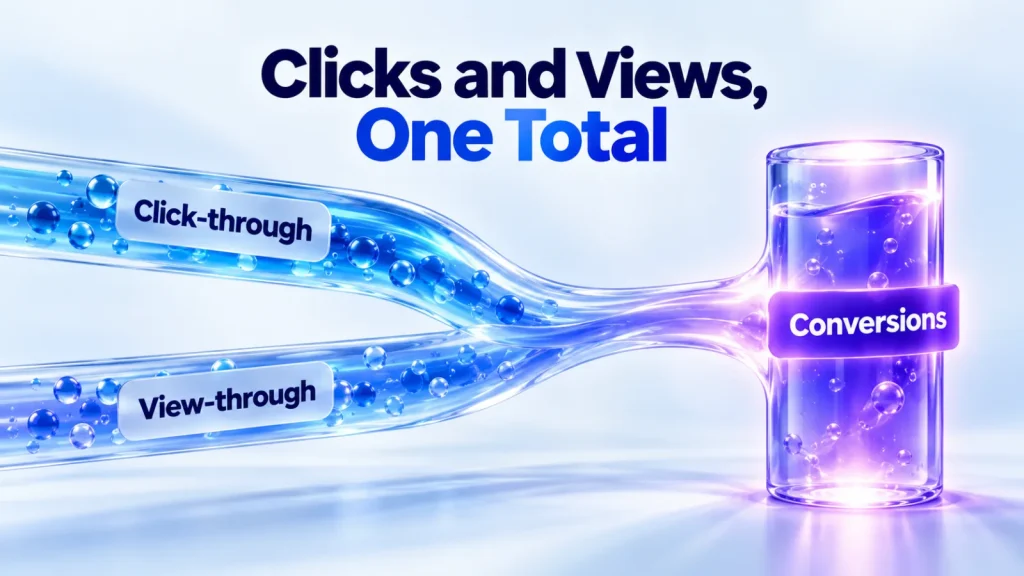
Conversions is one total for the scope and date range you’re looking at. It includes click-through conversions and, when the view-through window is on, eligible view-through conversions.
| Setting | Options | Default in the API |
|---|---|---|
| Click-through window | 7, 14 or 30 days | 30 days |
| View-through window | 0 days (off) or 1 day | 1 day |
| Time basis | Ad event time or conversion time | Ad event time |
A view-through conversion counts when someone converts within a day of seeing an ad, with no qualifying click. If both a view and a click qualify, the click gets the credit. OpenAI uses last-touch attribution, not multi-touch.
Changing a window changes reporting only. It doesn’t change optimization, bidding or billing. To change the windows, open Campaigns, Ad groups or Ads, select Edit columns and find Attribution windows under Conversion Events.
Ad event time or conversion time
By default, a conversion is dated to the click or impression that earned the credit. A purchase on Tuesday from Monday’s click appears on Monday. To date conversions by when they happened, add the Conversions (by conv. time) column in Edit columns.
Our view: use ad event time to judge campaigns, because it ties results to the spend that caused them. Use conversion time to reconcile with your sales records.
When the data arrives
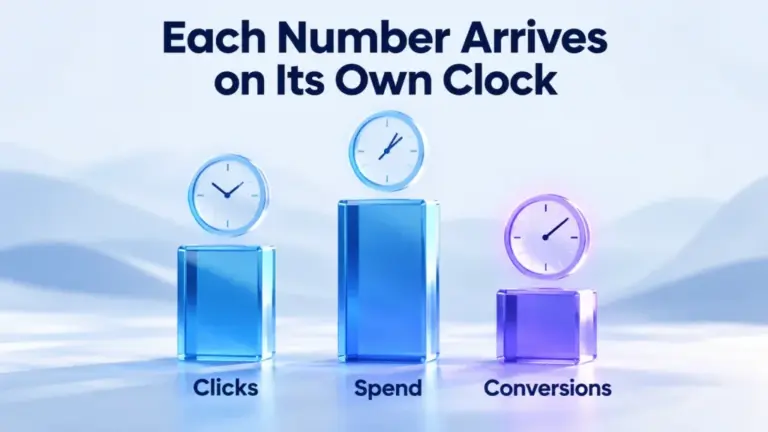
Each metric updates on its own schedule. Reading results too early is the most common reporting mistake we see.
| Data | Typical delay |
|---|---|
| Impressions, clicks and CTR | About 15 minutes |
| Spend | About 7 to 8 hours |
| Avg CPC and Avg CPM | Later, once spend settles |
| Attributed conversions | 24 to 48 hours, and totals can change as events arrive |
Because clicks arrive before spend, a campaign can show clicks and zero spend for hours. OpenAI says that doesn’t mean no charges have accrued. Dividing the latest spend by the latest clicks can also give a different figure from the reported CPC. Use the reported cost metrics.
Our rule is to judge yesterday and leave today alone. Today’s figures are partial, and conversions for recent days are still arriving. Compare equal, completed periods.
Seeing individual conversion events
The Conversions column combines your attributed events into one figure. To see each event on its own:
- Open the three-dot menu.
- Select Edit columns.
- Choose the events you want under Conversion Events.
- Select Save changes.
Selected event columns also appear in CSV exports. Their headers look like attributed_event_registration_completed. The Segment menu is separate: it breaks results down by device, country and platform, and doesn’t add event columns.
Exports and charts
Ads Manager has three CSV exports and a chart view.
| Option | Where | What you get |
|---|---|---|
| Export current table view | Three-dot menu, then Export | Cumulative metrics for every row in the table |
| Export cumulative values | Select rows, then Export | Cumulative metrics for the rows you selected |
| Export daily values | Export | One row per day |
| Insights charts | The chart icon, then View insights | Impressions, clicks or spend over a date range |
We’d export daily values once a week into a sheet you keep. Your own sheet lets you compare weeks and add CRM results beside them.
Product reporting
For product-feed campaigns, the Products tab shows insights for products that have delivered. It isn’t a full list of your feed. Products appear only after an active campaign delivers. To check that a feed is ready, look at the product count during ad group setup instead.
Through the API, product reports can include products with no impressions, which helps you find items that never deliver. Ads with several product cards also report card impressions and card clicks. OpenAI says a card impression isn’t a billable ad impression, and card clicks are separate from ad clicks. Product reports keep about 30 days of history.
Our product feed guide covers the feed side.
Dynamic URL parameters
You can append query parameters to landing page URLs at campaign, ad group or ad level. Ads Manager fills in four macros at delivery.
| Macro | Filled with |
|---|---|
| {campaign_id} | The campaign’s ID |
| {ad_group_id} | The ad group’s ID |
| {ad_id} | The ad’s ID |
| {ad_account_id} | The ad account’s ID |
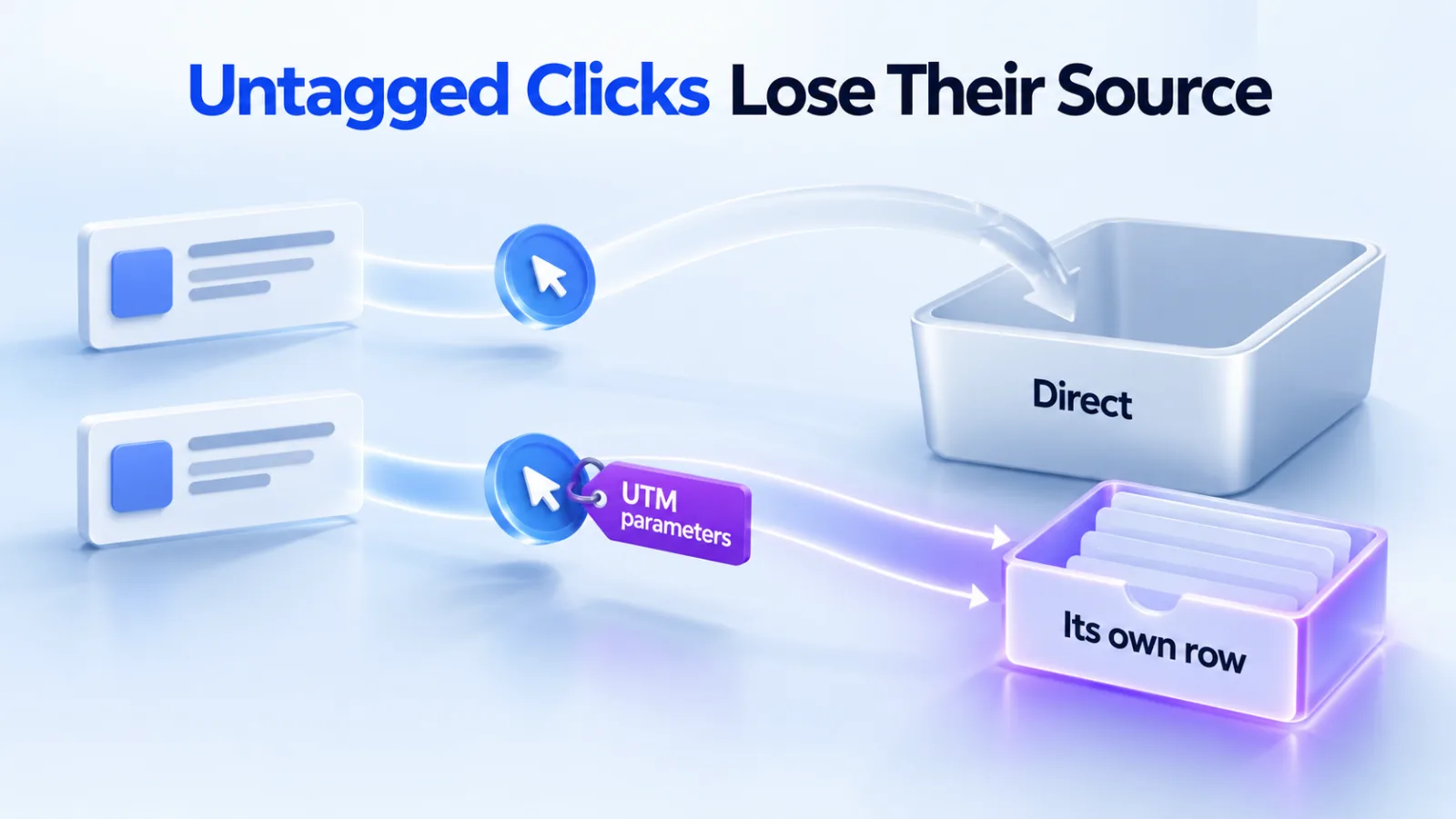
The most specific setting wins, in the order ad URL, ad, ad group, campaign. A parameter already in the ad’s URL isn’t overwritten. Use these with UTM tags so your analytics can match sessions to ads. Our ad preview tool builds a tagged URL for you.
The Insights API
The Insights API returns the same metrics in code. It suits agencies, dashboards and anyone combining several accounts.
| To report on | Endpoint |
|---|---|
| The account | GET /v1/ad_account/insights |
| One campaign | GET /v1/campaigns/{campaign_id}/insights |
| One ad group | GET /v1/ad_groups/{ad_group_id}/insights |
| One ad | GET /v1/ads/{ad_id}/insights |
| Focused conversion report | POST /v1/conversions/insights |
The API adds two fields that Ads Manager’s table doesn’t show by name. Cost per action is spend divided by conversions. Post-click conversion rate is click-through conversions divided by clicks.
Four details save time:
- CTR comes back as a ratio, so 0.04 means 4%. Spend, CPC and CPM come in major currency units, not budget micros.
- Reports can break down by country, device or platform.
- Delivery reports keep 365 days of history, hourly delivery about 30 days.
- The conversion endpoint returns HTTP 413 above 2,000 rows, with no partial report. Split the request by date or entity.
Non-goal conversions
A campaign optimizes toward one goal event. The conversion endpoint can also report other attributed events, called non-goal events, if you add attributed_events to the request. A campaign optimizing for leads can then show the purchases it also drove.
OpenAI notes that goal reporting applies from the moment a goal is attached, and events don’t backfill. Conversion-time reporting has limited coverage of non-goal events, so use ad event time for them.
When reports don’t match analytics
Ads Manager and your analytics will rarely agree exactly. OpenAI lists the usual causes: page load, redirects, consent, browser blocking, UTM handling, windows and time zones. Work through them in this order.
| Check | What to compare |
|---|---|
| Time zone | Use the ad account’s time zone in both tools |
| Date range | Same dates, both complete |
| Windows | Ads Manager’s click and view windows against your analytics model |
| Landing page | Redirects that drop UTM tags or the oppref click reference |
| Consent | Visitors who decline analytics still count as ad clicks |
| Time basis | Ad event time against conversion time |
Our guide to Direct traffic in GA4 covers the most common gap.
Conversion events showing zero
An event can fire and be accepted, yet show 0 in Ads Manager. OpenAI says this happens when it doesn’t match the conversion event configured for the campaign. For a custom event, the event type must be Custom and the name must match exactly. A matching display name isn’t enough.
Fix the setup, then test with new traffic. OpenAI says events from the mismatched setup won’t backfill. Our conversion tracking guide and event quality guide cover the setup.
What to send support
If a gap survives those checks, OpenAI asks for specific details, so support can tell an implementation problem from an attribution difference.
- Ad account ID, and campaign and ad names.
- Date range and time zone.
- An Ads Manager CSV export and your analytics comparison.
- Pixel ID, event names and sample conversion timestamps.
- Screenshots of the discrepancy.
A weekly reporting routine
This is the routine we’d suggest for a typical account.
| When | What to do |
|---|---|
| Daily | Check delivery: impressions and clicks only. Ignore spend in the first hours |
| Monday | Export last week’s daily values. Record spend, clicks, conversions and cost per conversion |
| Monday | Add CRM results for the same leads or orders, by ad event week |
| Monthly | Compare whole months against your stop rules, with the same windows |
Our 30-day test plan sets the stop rules this routine checks.
Questions
Why does my campaign show clicks but no spend?
Spend arrives about 7 to 8 hours after clicks. OpenAI says a temporary zero doesn’t mean no charges have accrued. Wait until the spend catches up before you judge cost per click, and compare completed days rather than the current one.
How long do conversions take to appear?
OpenAI says to allow 24 to 48 hours for attributed conversions to appear in Ads Manager. Totals can change as recent events are processed. The API docs say to allow at least one day. Judge conversion results on periods that ended at least two days ago.
Are view-through conversions included in Conversions?
Yes, when the view-through window is set to 1 day. Set it to 0 days and the total holds click-through conversions only. You can show click-through and view-through conversions as separate columns, and include them in exports. Hover over the Conversions column to see the split for any row.
Can I see revenue for leads in Ads Manager?
Not directly. Order Created Sales and ROAS use only order_created events and their values. For leads, track the outcome in your CRM. Join it to Ads Manager data by campaign or ad, using the dynamic URL parameters.
How far back can I report?
Through the API, delivery reports cover the most recent 365 days. Hourly delivery and product reports cover about 30 days. The conversion endpoint accepts daily requests of up to 365 days. Export daily values regularly if you want a longer record of your own.
Why does the API’s CPC differ from my own calculation?
Spend settles later than clicks. Dividing the newest spend by the newest clicks mixes two processing stages, so the result can differ from the returned CPC. OpenAI says to use the returned cost metrics for evaluation. The same applies to CPM and impressions.